
iPhone & iPad
Install GigSwipe on iPhone
Free, takes 30 seconds, no App Store needed.
Use Safari (the blue compass app).
On a computer? Scan this with your iPhone camera.
Open the link in Safari
Tap the button below, or scan the code. The page opens in Safari.
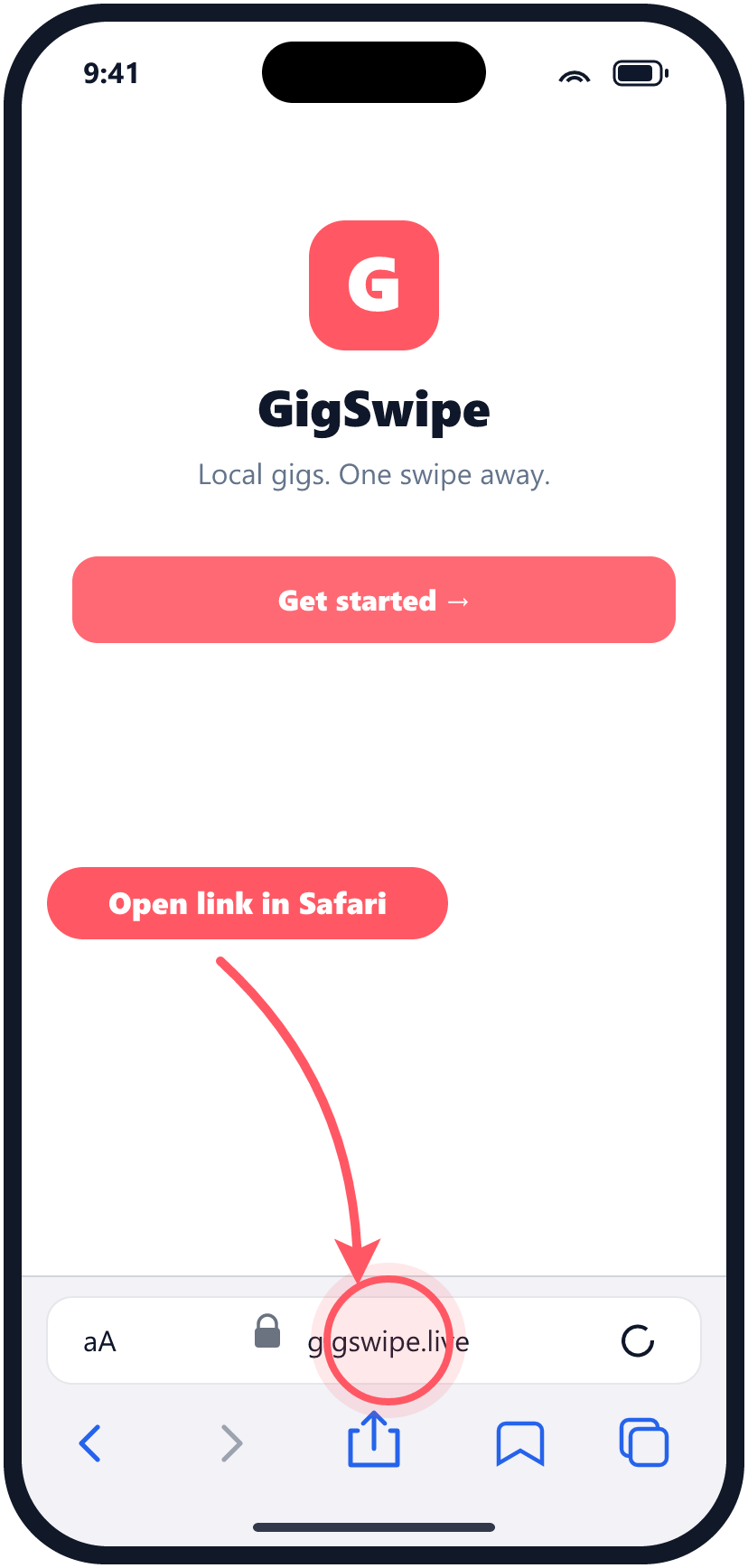
Tip: Opened in Chrome or inside WhatsApp? Tap “Copy link” and paste it into Safari’s address bar.
Tap the Share button
The square with an arrow pointing up. On newer iPhones, tap ••• first, then Share.
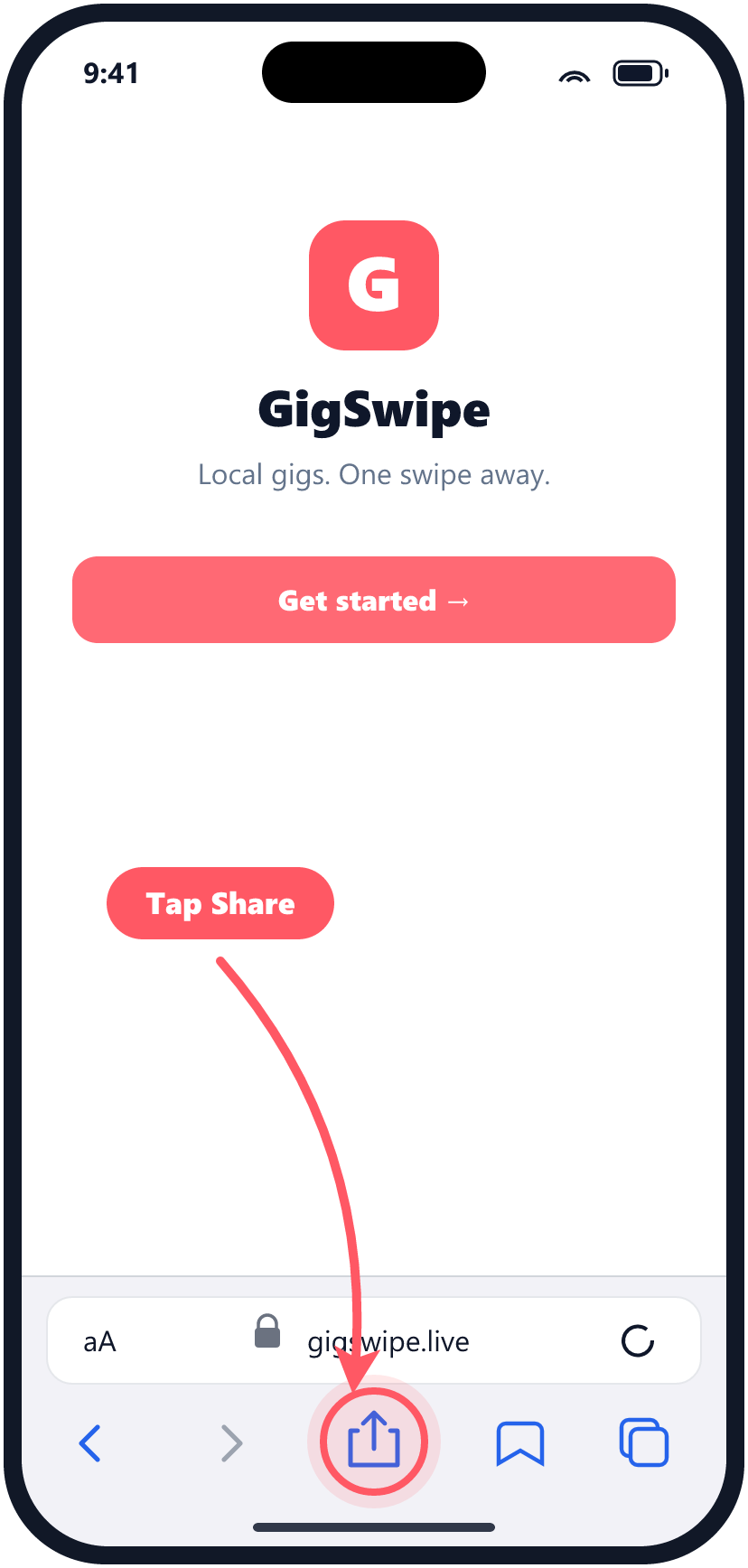
Tip: On iPhone the Share button is at the bottom of the screen. On iPad it is at the top right.
Tap “Add to Home Screen”
Scroll down the list if you don’t see it straight away.
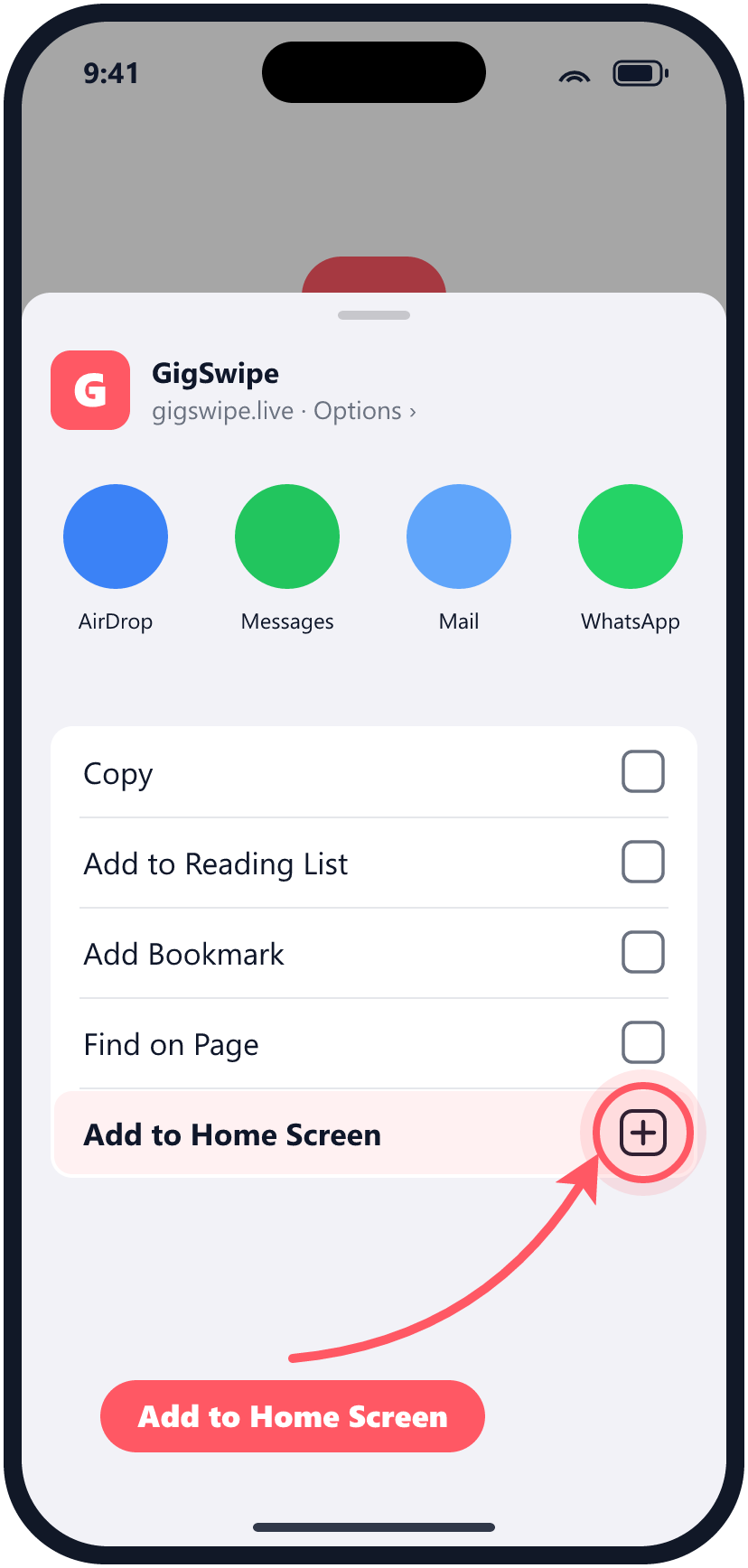
Tip: Still can’t see it? Scroll to the very bottom, tap “Edit Actions…” and add “Add to Home Screen”.
Tap “Add”
It’s in the top-right corner. Keep “Open as Web App” switched on.
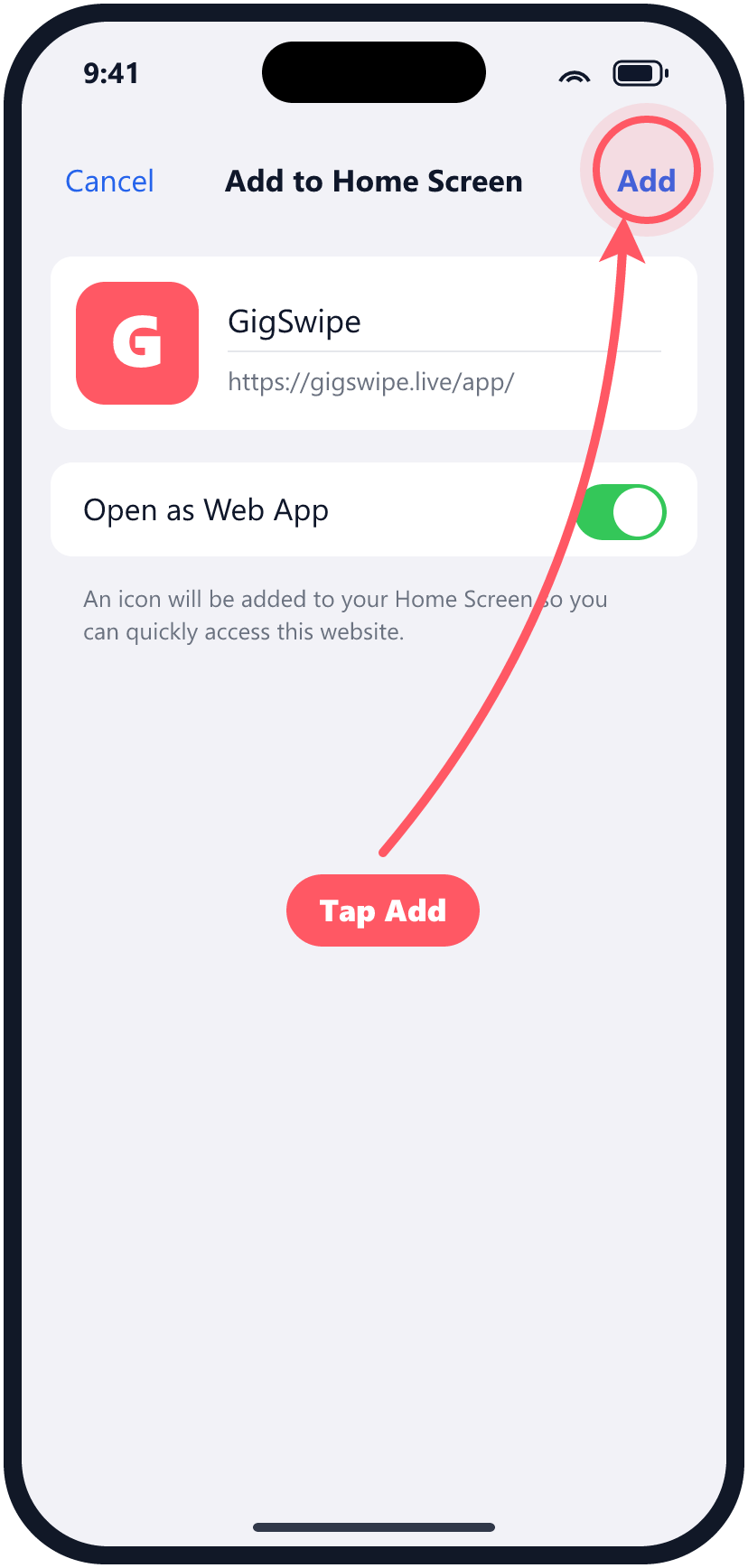
Tip: You can rename the icon here, but keeping “GigSwipe” makes it easy to find.
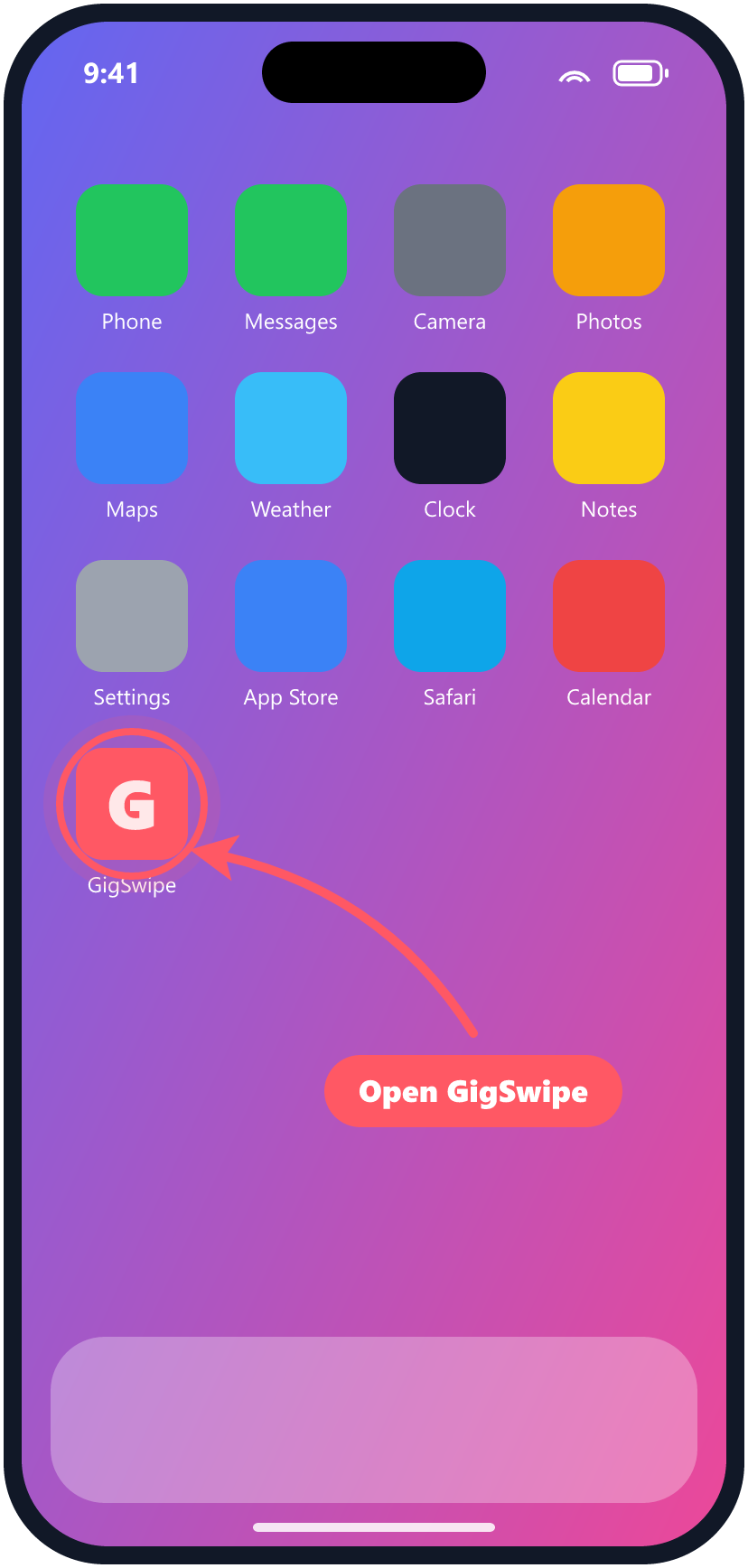
Open GigSwipe
The GigSwipe icon is now on your Home Screen. Always open it from there.
Tip: When GigSwipe asks, allow notifications so you hear about new gigs near you straight away.
All done
You’re all set!
GigSwipe now opens from your Home Screen like any other app: full screen, with alerts for gigs near you.
Stuck on a step? Message us on WhatsApp and we’ll guide you.
Chat on WhatsApp+91 70688 18200Using an Android phone instead? Download the Android app